
Core Current Open Items
The TAL table below displays workflow items that may require user attention.
NOTE: Items in the repair lists are suspended. They are not included in reporting, rebate calculations, or government pricing calculations.
To review the workflow items, select the GO button.
________________________________________________________________________________________________________________
Repair Indirect Sales History with Invalid Vendor, Contract, Product, COT, Customer with Invalid COT
The Repair Indirect Sales History with Invalid Vendor, Contract, Product, COT, Customer with Invalid COT workflow will allow the user to view and automatically repair Invalid Vendor, Invalid Product, Invalid COT, Invalid Contract, and Invalid Customer with Invalid COT errors.
When repairing, move through the error tabs from left to right, beginning with resolving the Invalid Vendor error.
Invalid Vendor -> Invalid Product -> Invalid COT – Invalid Contract – Invalid Customer With Invalid COT
Related Interfaces
- Indirect Sales History
NOTE: If there are errors that the user does not want to correct, the interface can be reversed, or the line can be deleted by enabling the role DELETE_SUSPENDED_INDIRECT_SALES.
Invalid Vendor
This process will allow a user to view and automatically repair Invalid Vendor data. The Invalid Vendor link lists the indirect sales data uploaded with an Invalid Vendor ID.
This error occurs if the vendor/wholesaler ID loaded in the indirect sales history file does not exist in iContracts, or if the customer with this ID is not a VENDOR type customer.
Invalid Vendor Troubleshooting – Common Errors and Resolutions
Reason: A new vendor/wholesaler customer was loaded via the indirect sales history file, but has not been added into the iContracts application.
Fix: Add the new customer via Contract Core -> Customer Maintenance -> Add.
Visit the Repair Indirect Sales workflow again and the sales with this error should resolve.
Reason: Data for an existing vendor/wholesaler customer was loaded with new ID or additional identifier.
Fix: Find the existing customer via Contract Core -> Customer Maintenance -> Change. Add the new ID as an alias.
Visit the Repair Indirect Sales workflow again and the sales with this error should resolve.
Reason: Mapping issue in the indirect sales file itself.
Fix: Reverse the indirect sales file by navigating to Contract Core -> Interfaces -> Interface History.
Correct the formatting and re-upload the file; or, if the vendor ID was the only mapping issue, within the Invalid Vendor tab, the user can type the correct customer/vendor ID in the “Vendor ID” column, select the customer from the drop-down menu, and click SUBMIT.
Reason: An existing vendor/wholesaler customer has a different customer type selected other than VENDOR.
Fix: Navigate to Contract Core -> Customer Maintenance -> Change and update the Customer Type to VENDOR.
Invalid Product
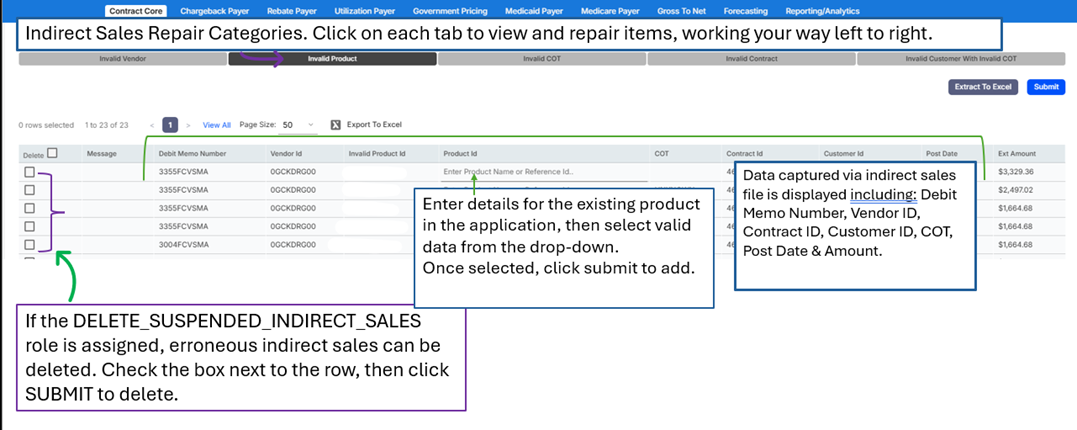
This process will allow a user to view and automatically repair Invalid Product data. The Invalid Product link lists the indirect sales data uploaded with an Invalid Product ID.
This error occurs if the Product ID loaded in the indirect sales file doesn’t exist in iContracts for any product. The ID that was loaded will appear in the Invalid Product ID column.
Invalid Product Troubleshooting – Common Errors and Resolutions
Reason: A new product was loaded via the indirect sales history file, but has not been added into the iContracts application.
Fix: Add the new product via Contract Core -> Product Maintenance -> Add.
Visit the Repair Indirect Sales workflow again and the sales with this error should resolve.
Reason: Data for an existing product was loaded with a new ERP ID or additional identifier.
Fix: Navigate to Contract Core -> Product Maintenance -> Change and enter the product details. Add the new ID as an alias.
Visit the Repair Indirect Sales workflow again and the sales with this error should resolve.
Reason: Mapping issue in the indirect sales file itself.
Fix: Reverse the indirect sales file by navigating to Contract Core -> Interfaces -> Interface History.
Correct the formatting and re-upload the file; or, if the product ID was the only mapping issue, within the Invalid Product tab, the user can type the correct product ID in the “Product ID” column, select the product from the drop-down menu, and click SUBMIT.
Invalid COT
This process will allow a user to view and automatically repair Invalid COT data. The Invalid COT link lists the indirect sales data uploaded with an Invalid Class of Trade.
This error occurs if the Class of Trade provided in the indirect sales history file does not exist in iContracts.
Invalid COT Troubleshooting – Common Errors and Resolutions
Reason: An indirect sales file was loaded that includes a new Class of Trade code that has not been added to the iContracts application yet.
Fix: Add the new Class of Trade by navigating to Contract Core -> ID Maintenance -> COT.
Visit the Repair Indirect Sales workflow again and the sales with this error should resolve.
Reason: Mapping issue in the indirect sales file itself.
Fix: Reverse the indirect sales file by navigating to Contract Core -> Interfaces -> Interface History.
Correct the formatting and re-upload the file; or, if the COT was the only mapping issue, within the Invalid COT tab, the user can type the correct Class of Trade in the “COT” column, select the COT from the drop-down menu, and click SUBMIT.
Invalid Contract
This process will allow a user to view and automatically repair Invalid Contract data. The Invalid Contract link lists the indirect sales data uploaded with an Invalid Contract ID
This error occurs if the Contract ID loaded in the indirect sales history file doesn’t exist in iContracts, or if the Invoice Date on the Chargeback line falls outside of the indirect contract effective dates.
Invalid Contract Troubleshooting – Common Errors and Resolutions
Reason: An indirect sales file was loaded with a new indirect contract that hasn’t been added in the iContracts application yet.
Fix: Add the new contract details via Contract Core -> Contract Maintenance -> Add.
Make sure that the contract added is an INDIRECT contract.
Visit the Repair Indirect Sales workflow again and the sales with this error should resolve.
Reason: An indirect sales file was loaded with an existing contract that has a new ERP ID or new additional identifier.
Fix: Find the existing contract by navigating to Contract Core -> Contract Maintenance -> Change.
Add the new ID as an alias.
Visit the Repair Indirect Sales workflow again and the sales with this error should resolve.
Reason: Mapping issue in the indirect sales file itself.
Fix: Reverse the indirect sales file by navigating to Contract Core -> Interfaces -> Interface History.
Correct the formatting and re-upload the file; or, if the Contract ID was the only mapping issue, within the Invalid Contract tab, the user can type the correct Contract ID in the “Contract ID” column, select the correct contract from the drop-down menu, and click SUBMIT.
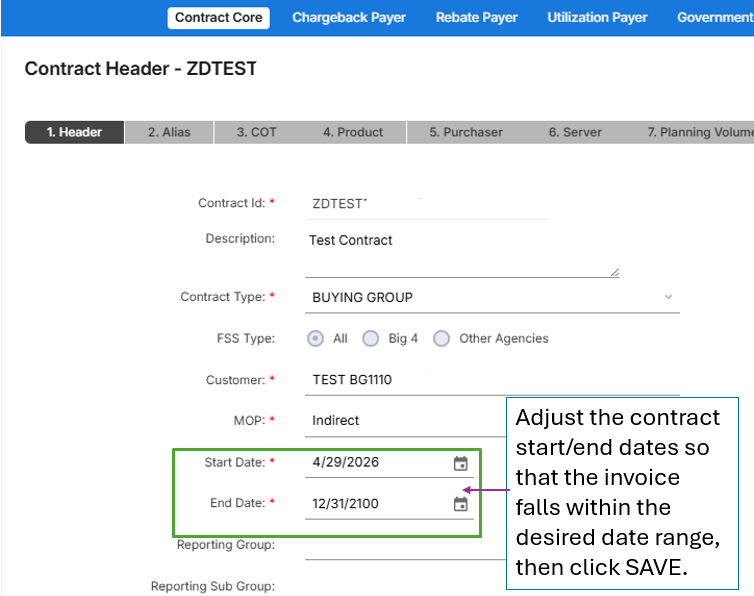
Reason: The invoice date on the chargeback line falls outside of the indirect contract effective dates.
Fix: Navigate to Contract Core -> Contract Maintenance -> Change.
Enter the contract details, then hit GO. In the 1. Header tab, extend the contract start and/or end date so that the invoice falls within the date range.
Invalid Customer with Invalid COT
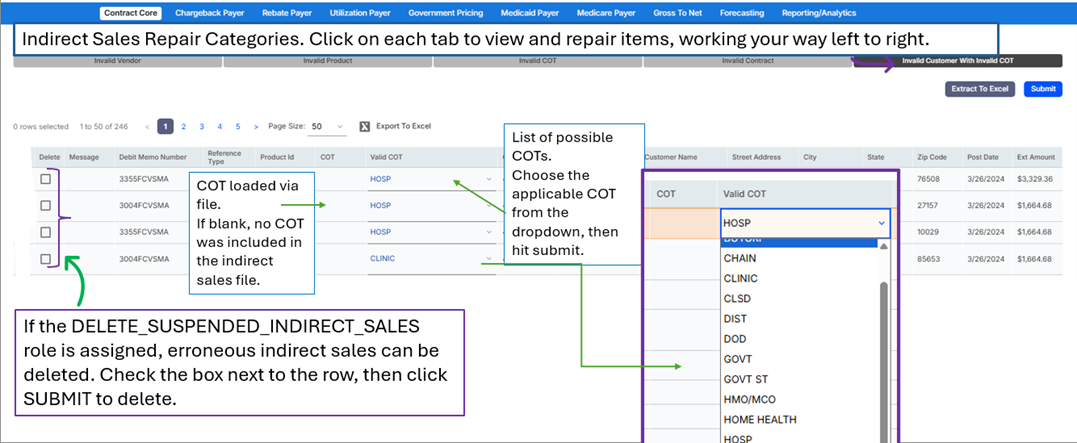
This process will allow a user to view and automatically repair Invalid Customer COT data. The Invalid Customer with Invalid COT link lists the indirect sales data uploaded with an Invalid Customer with an Invalid COT.
This error occurs if the Class of Trade provided in the indirect sales history file does not exist in iContracts, or when there is a mapping issue in the indirect sales history file, resulting in an UNKNOWN Class of Trade.
Invalid Customer with Invalid COT Troubleshooting – Common Errors and Resolutions
Reason: An indirect sales file was loaded that includes a new Class of Trade code that has not been added to the iContracts application yet.
Fix: Add the new Class of Trade by navigating to Contract Core -> ID Maintenance -> COT.
Visit the Repair Indirect Sales workflow again and the sales with this error should resolve.
Reason: Mapping issue in the indirect sales file itself.
Fix: Reverse the indirect sales file by navigating to Contract Core -> Interfaces -> Interface History.
Correct the formatting and re-upload the file; or, if the COT was the only mapping issue, within the Invalid Customer with Invalid COT tab, select the correct COT from the drop-down menu, and click SUBMIT.
Comments
0 comments
Please sign in to leave a comment.