
Question -
I am trying to assign a record to another user in workflow but they are not available in the drop down. How can I get the correct user to appear in the assignment drop down?
Answer -
User security profiles and user attributes are the main driver in who appears in these lists.
The user in question will need access to the module you are working in and have editing privileges. This in turn means they need a Business Reviewer or Business Owner security profile to be allowed to appear in the workflow and make changes to the any record within that module.
If the user has the correct Security Profiles, you will want to review their user Attributes and compare them to the record in question: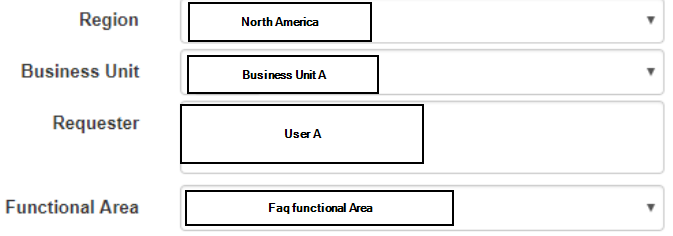
First you will want to review the record in question and determine:
-Which step within workflow you are in?
Certain steps in workflow require a compliance or finance team member to review

-What is the functional area, region, and business unit listed on the record?
This is very important as the user you are looking for will need the same attributes.
-Is there any particular financial value associated to this record?
If you are on a step within workflow which requires a finance team member to review the record, they will need sufficient financial approval level in their attributes to approve the record.
Once you have established the above bolded items:
-Navigate to the Admin > User Attribute Maintenance page
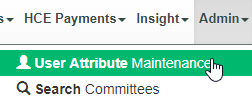
-Search for the user in question by name or email
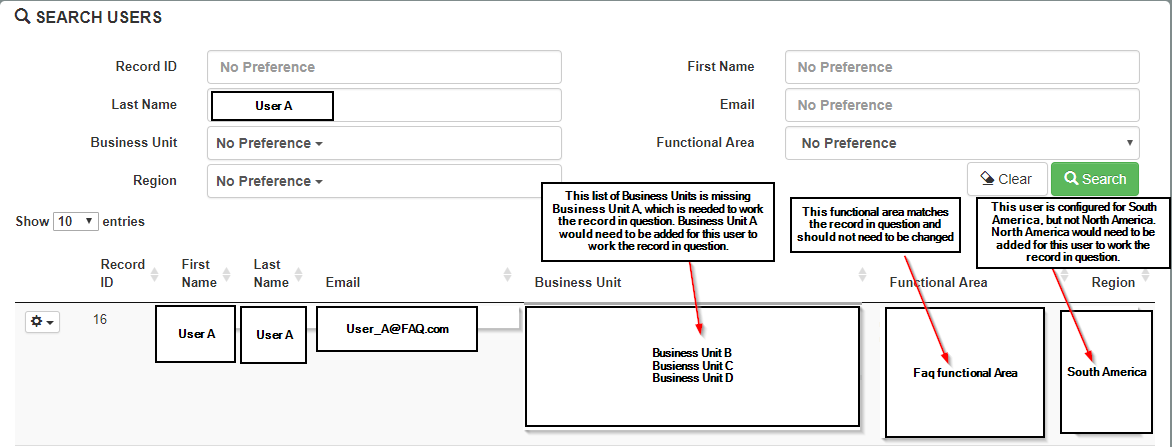
-Select the action cogg to the left of the user to view/edit the user
-Review the Region(s), Functional Area(s), Business Unit(s), and financial approval level for the user.
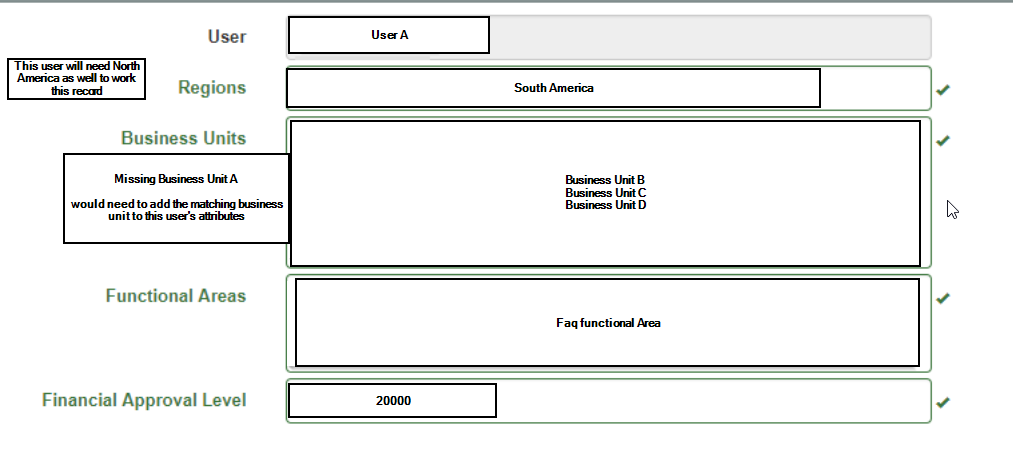
Do they match the record? If not, you may need to add additional attributes to this user.
Comments
0 comments
Please sign in to leave a comment.