
Question -
How do I update MediSpend so that it shows which records have been submitted to CMS
Answer -
Once you have completed submitting your payments to CMS through their Open Payments portal, you will be able to download a submission report from CMS which lists all the Spend Home System Identifiers, their associated submission ids, and the date you submitted. You will want to take this file and import it into the Medispend Transparency Reporting Solution to update your spend records through the Import Submitted Transactions function in the system.with their submission status - then these records can be located within the system using the submission status data.
Step 1. Import CMS Submitted File
- Log into the MediSpend Transparency Reporting Solution platform
- Go to the 'Reporting' drop down menu
- Select 'Import Submitted Transactions'
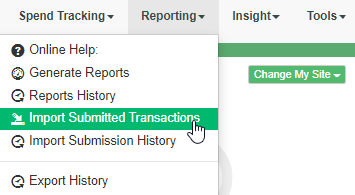
- Select
- Jurisdiction: US Federal Gov.
- Submission Date: M/DD/YY
- Submission Status: Submitted
- Remaining options leave as default
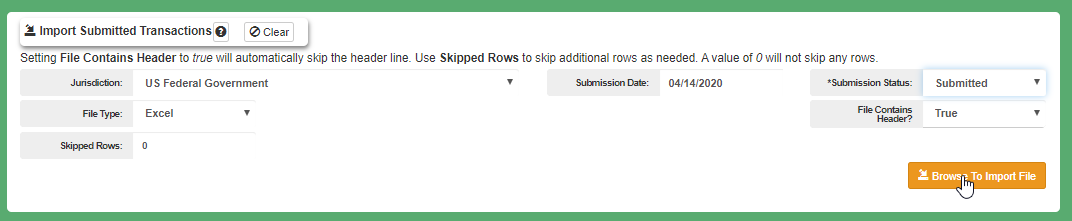
- Select the 'Browse to import File' and select your submitted file which you downloaded from the Open Payments portal.
- Map the Home System Identifier listed in the file to the home system identifier in the system. You can also map the Submission ID from the file to the Submission ID in the system( *this is optional but suggested)
- Apply Data mappings to import your file and you are done!
Comments
0 comments
Please sign in to leave a comment.