
Question -
If I have already submitted to CMS and have entered additional spend into the system, how do I generate a new report and ensure I only submit the un-submitted records?
Answer -
You can report any new submissions Post-reporting by regenerating and resubmitting the data to CMS. The system is configured to only allow records which have a Submission Status of 'Not Submitted' or 'Flag for Re-submission', so you will want to update the submission status of spend you HAVE submitted before generating a new report. This will ensure records you have already submitted are not reported twice.
First you will want to download the list of submitted transactions from the CMS portal.
This will provide you with the list of Home System Identifiers reported, and submission identifiers for those spend records. You can then use this list to update the spend submission status for records you have already reported:
- Log into the Medispend Transparency Reporting Solution platform
- Navigate to the Reporting drop down
- Select the 'Import Submitted Transactions' option
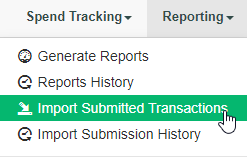
- Select
- Jurisdiction: US Federal Gov.
- Submission Date: M/DD/YY
- Submission Status: Submitted
- Remaining options leave as default
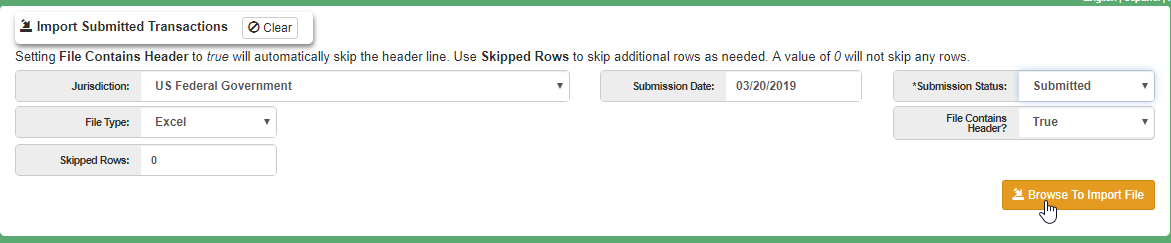
- Navigate to select your 'submitted' file
- Map Home System ID (and the submission ID *optional)
- Import
This will update your existing spend records which have already been submitted so that their submission status reflects 'submitted'.
You will now need to generate your new report:
- Navigate to the 'Reporting' drop down
- Select 'Generate Reports'
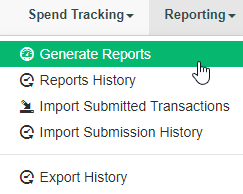
- Generate a Federal Spend Report
- Select Jurisdiction Report ‘YYYY US Federal General Spend’
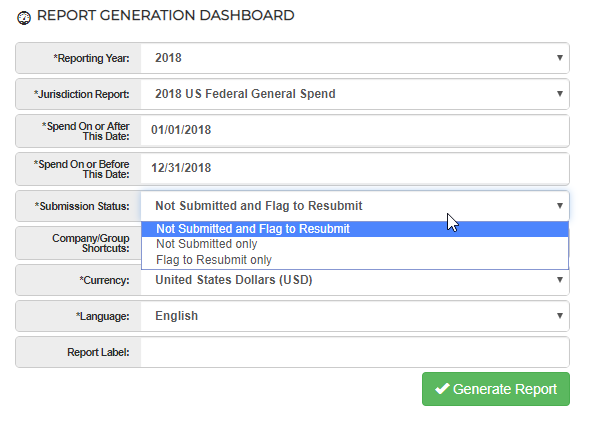
- This will give you the additional spends you need to submit to CMS
Comments
0 comments
Please sign in to leave a comment.