
Question -
How do I add a new nature and purpose mapping into the system?
Answer -
Adding and editing nature and purpose mappings can be done from the Nature and Purpose Mappings page located within the tools menu.
1) log into the Medispend Transparency Reporting Solution as an admin
2) Select the tools menu drop down at the top right hand corner of your webpage
3) Select 'Nature and Purpose Mappings'
4) If you are adding a new mapping, select the 'New Mapping' tab.
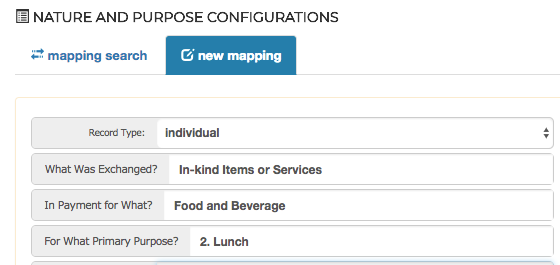
5) You will then need to fill out the applicable fields:
- Enter the Record Type (Individual or Organization)
- Enter the What Was Exchanged? (Nature and Purpose 1)
- Enter the In Payment for What? (Nature and Purpose 2)
- Enter the For What Primary Purpose (Nature and Purpose 3)
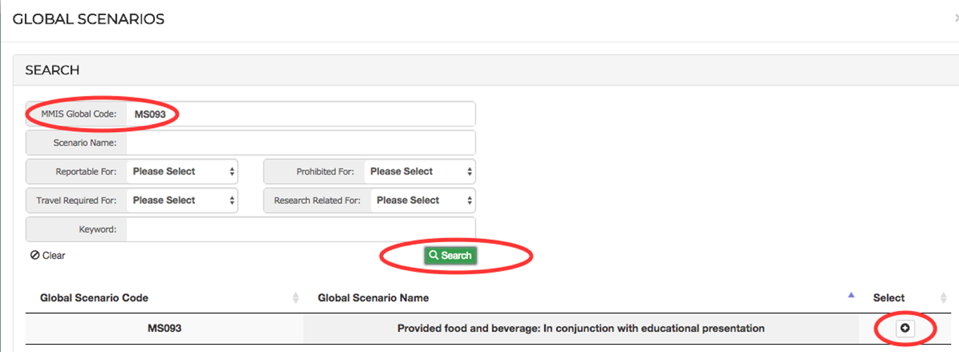
6) Determine the global nature and purpose code and associate it to your new mapping
- This often requires some assistance from support or the compliance team however you may determine this by exporting the current list of Nature and Purpose mappings and reviewing the global scenarios listed. A Global code will be associated to the nature and purpose you are selecting - once you know which Global code you are looking for you can search for it by its Global Code, then select the + symbol to the right of the results to associate it to your new mapping.
7) after completing the above you will want to set a start and end date for your nature and purpose mapping, as well as any known alias' which may be listed for this NP mapping in future transactions - for further guidance on this please do not hesitate to reach out to support.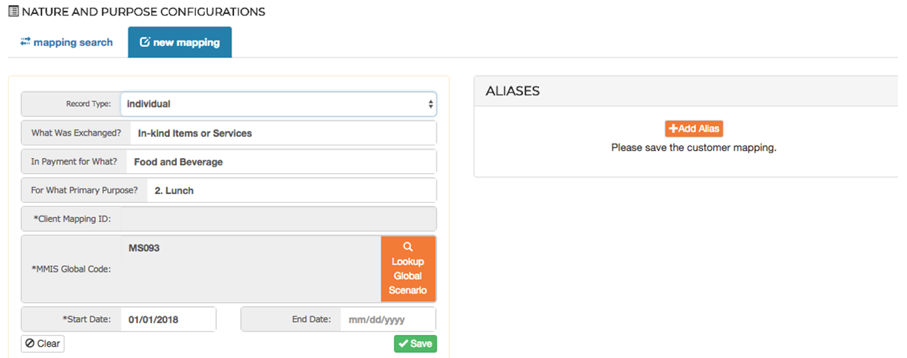
Comments
0 comments
Please sign in to leave a comment.